
Assessment
We use different assessment tools on Blackboard. Whichever tool is used, the submission point should be clearly labelled with the assessment title and deadline, and can be found in the Module Content area along with the assignment instructions. Click on each assignment button below to find out more.
/filters:quality(100)/prod01/channel_3/media/tcd/itservices/images/miscellaneous/website-homepage-header.jpg)
Online Exams Advice
Click here for informationFrequently Asked Questions
Why can't I find my assignment?
Your instructor (Module Co-Ordinator) controls the date when assignments become available. Contact your School office for more information.
Ultra Icons for Assignments
| Icon | Type of Assignment |
|---|---|
 |
Blackboard Assignment |
 |
Blackboard Test |
 |
Turnitin Assignment |
How do I edit or resubmit an assignment?
Once submitted, you cannot edit your assignment. To resubmit, first check the assignment settings to see if multiple attempts are allowed. If the option to resubmit is unavailable and you need to correct an error, you must email your instructor for permission to submit a new version.
Online Exams Practice Module
IT Services has created a practice module for students to practice submitting attempts using the assessment tools in Blackboard. You will need to self-enrol on this module before you do this; please see the instructions below.
Joining the Online Exams Practice Module - Full Steps
- Log in to Blackboard via mymodule.tcd.ie
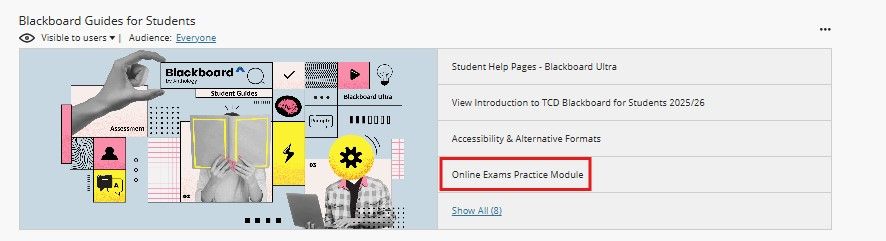
- On the Institution Page, under Blackboard Guides for Students, click the link for the Online Exams Practice Module.
- Click on the Enrol button.
- Click on the Submit button on the bottom right of your page.
- Your page will then say you have been enrolled. Click on the OK button on the bottom right of the page to access the module.
- You will be able to access the module from your Module List.
Alternatively
- Log in to Blackboard via mymodule.tcd.ie
- Click on Module in the left navigation, then select Module Catalogue from the top right corner.
- Use the search bar
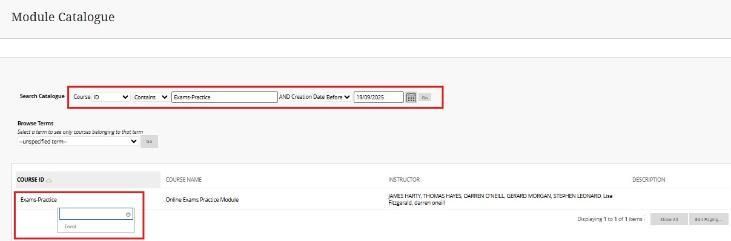
- Click on Enrol
- The Online Exam Practice Module will appear on your module list.
Viewing your Marks and Feedback
Activity Stream
When marks are posted (released), you may receive a notification in your Activity Stream. Remember to check your notification settings to ensure you don't miss your marks.
- Select Activity from the left-hand menu.
- Select Marks and Feedback to view the mark.
- Select the Assessment Name to view your submission, mark, and feedback in your module.
Marks
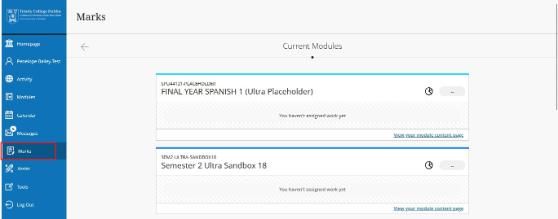
- Select Marks from the left-hand navigation menu.
- Select the assessment name to view your submission, mark, and feedback.
- A maximum of five items will be displayed per module.
- Select View all work to view other assessed work within your course.
Gradebook
Each Blackboard Ultra module has a page called Gradebook. You can view your marks and feedback from this page. An icon shows the number of new assessed items you have to review.

Further Help & Support
If you are experiencing issues accessing Blackboard or specific modules, please get in touch with the Teaching & Learning IT team via the IT Service Desk by one of the methods listed below.
When you log a ticket, please include the module ID, name, and your instructor's contact details. Often, for issues related to accessing content, assessments, etc., within a module, we need to contact the instructor to verify, as they manage the settings for all content in a module.
Service desk opening hours are: Monday - Friday: 09:00 - 17:00
The service desk is contactable by phone: +353 (01) 896 2000
You can email the service desk.
assist.tcd.ie
Using your Trinity computer account, log in to our IT Service Desk portal (assist.tcd.ie), and browse our knowledge base and service catalogue for solutions to common IT-related support questions. You can also log a ticket with the IT Support Desk, which will follow up with you to help resolve your query.
Alternatively, you can also email itservicedesk@tcd.ie, which will automatically create a ticket for you in the assist.tcd.ie portal.
In-person visit to the IT Service Desk
We operate a walk-in service on campus. For our current opening hours, see the link below.